For the complete documentation index, see llms.txt. Markdown versions of all docs pages are available by appending .md to any docs URL.
Devin Desktop
Verified : Code examples on this page have been automatically tested and verified.Configure Devin Desktop AI code editor to use agentgateway
Configure Devin Desktop, the AI-powered code editor from Cognition (formerly Windsurf), to route requests to your LLM through your agentgateway proxy.
Before you begin
Example agentgateway configuration
You can configure agentgateway in the UI or in your configuration file.
To create the same configuration in the UI, follow these steps.
Set your OpenAI API key, create a configuration file with an empty
llmsection, and start agentgateway. The UI checks that theOPENAI_API_KEYenvironment variable exists when you save the model.export OPENAI_API_KEY='<your-api-key>' cat > config.yaml <<'EOF' llm: models: [] EOF agentgateway -f config.yamlAdd the model.
Open LLM > Models, such as http://localhost:15000/ui/llm/models, and click Add model.
From the Provider dropdown, select OpenAI.
In the Incoming model match field, replace the default
openai/*with*.For the Provider API key, select Env var, and enter
OPENAI_API_KEY.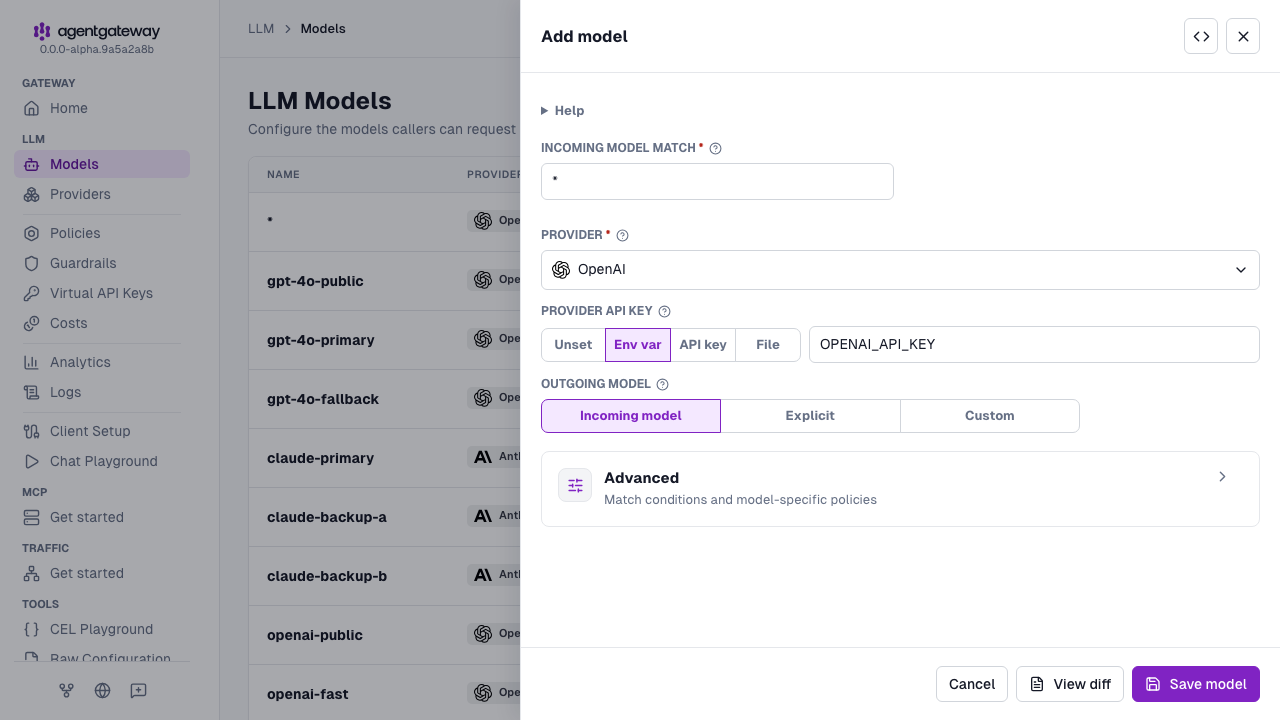
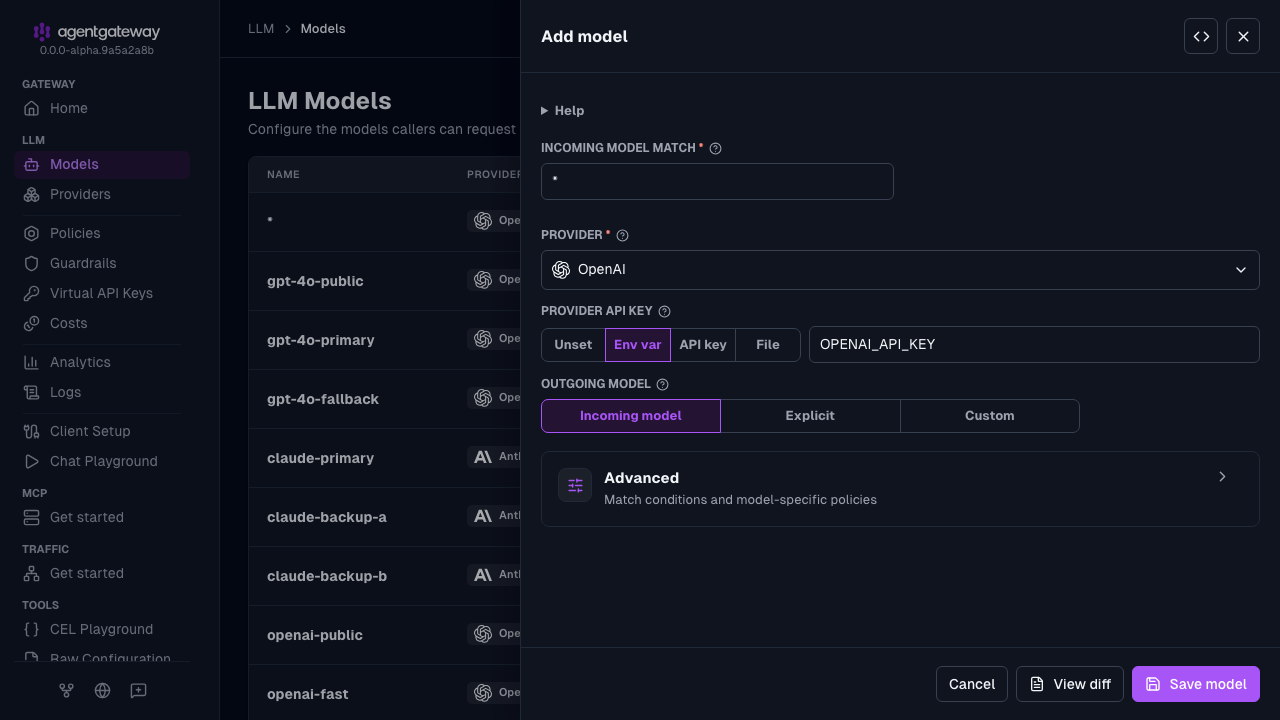
Click Save model.
Serve LLM traffic on port
3000.Open the Gateway Overview page, such as http://localhost:15000/ui/.
On the LLM row, click Settings.
Enter
3000for the Port, and click Save settings.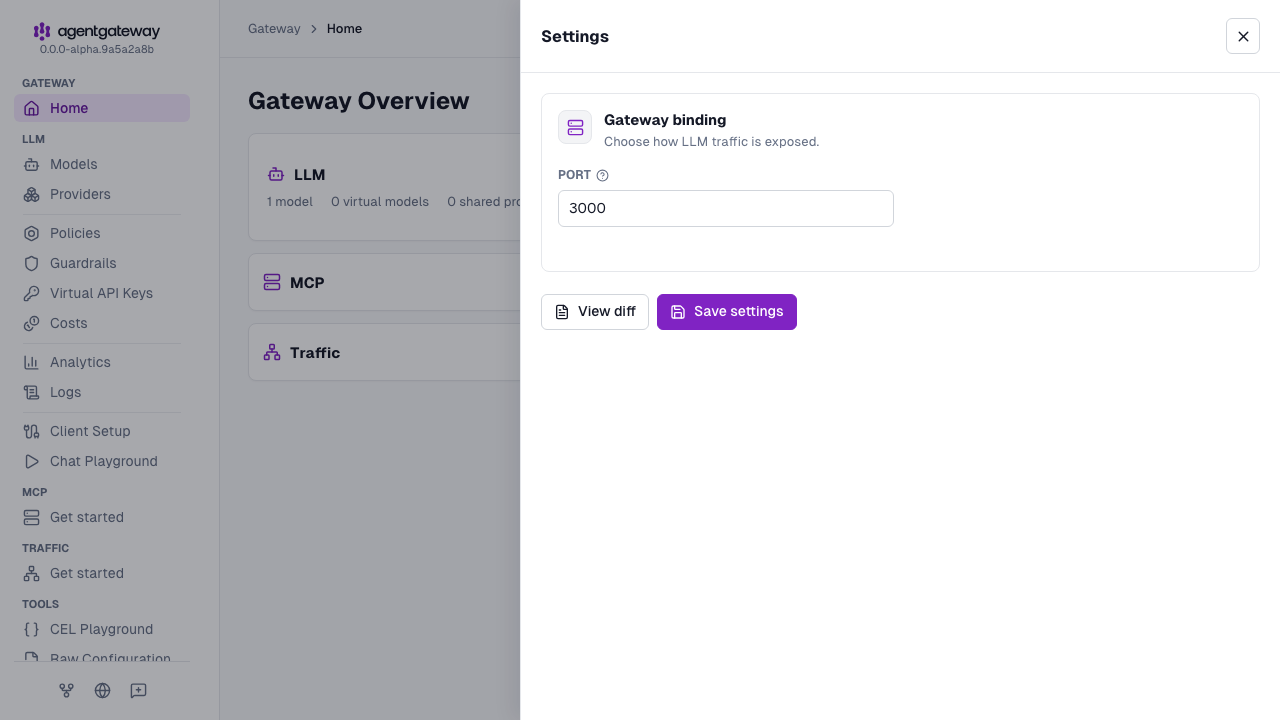
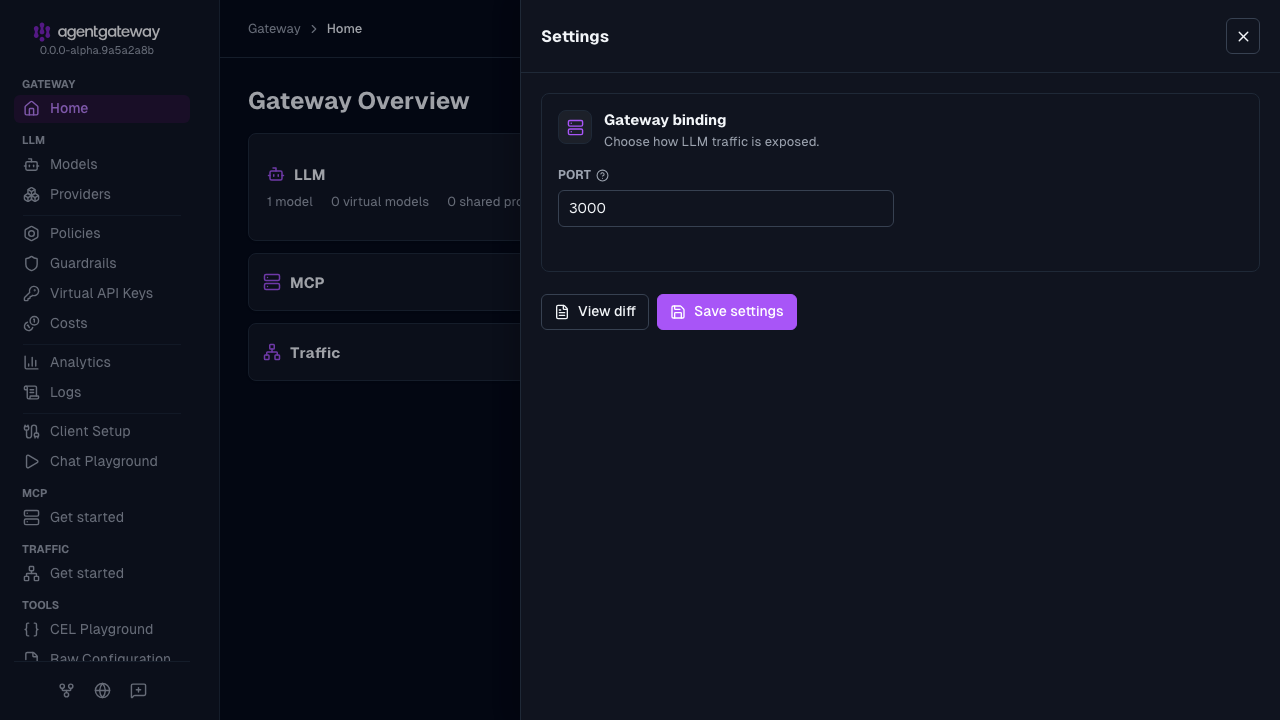
The UI writes the same deprecated llm.port field as the Config file tab, plus an empty llm.gateways list. If your configuration defines gateways, the Settings drawer shows a Gateway dropdown instead of Port, and binds LLM traffic to the gateway that you select. The UI also writes the provider as openai instead of openAI. Agentgateway accepts both values.
Whether the UI can save depends on your storage mode. For more information, see Save changes from the UI.
Configure Devin Desktop
Configure Devin Desktop to route LLM requests through agentgateway. For more information, review the Devin Desktop documentation.
Open Devin Desktop Settings.
- macOS:
Cmd + ,or Devin Desktop > Settings - Windows/Linux:
Ctrl + ,or File > Preferences > Settings
- macOS:
Search for Http: Proxy.
Enter your agentgateway URL.
http://localhost:3000Save the settings.
Verify the connection
- Open the Devin Desktop chat panel.
- Send a message such as “test”.
- Devin Desktop responds through your agentgateway backend.