For the complete documentation index, see llms.txt. Markdown versions of all docs pages are available by appending .md to any docs URL.
Listeners
Verified : Code examples on this page have been automatically tested and verified.Define the ports, protocols, and TLS settings where agentgateway accepts incoming traffic.
Listeners are the entrypoints for traffic into agentgateway. Agentgateway supports both HTTPHTTP (Hypertext Transfer Protocol)The protocol used for transmitting web pages and data over the internet. Agentgateway primarily handles HTTP and HTTPS traffic. and TCPTCP (Transmission Control Protocol)A connection-oriented protocol that provides reliable, ordered delivery of data. Agentgateway supports TCP listeners for non-HTTP traffic. traffic, with and without TLSTLS (Transport Layer Security)A cryptographic protocol that provides secure communication over a network. Agentgateway supports TLS for both incoming connections (listeners) and outgoing connections (backends)..
You configure a listener as part of a gateway. A gateway with a single listener sets the protocol and TLS settings directly, and a gateway that serves multiple hostnames on one port uses the listeners field to define each one. For more information about gateways and how routes attach to them, see Gateways.
HTTP Listeners
An HTTP listener can be configured by setting protocol: HTTP on the gateway.
This is also the default protocol if no protocol is specified.
You can add an HTTP listener in the UI or in your configuration file.
To add a gateway with an HTTP listener in the UI, follow these steps. The steps create the same http gateway as the Config file tab.
Open Traffic > Gateways, and click Add gateway.
Enter
httpfor the Name and3000for the Port.Keep HTTP as the Protocol.
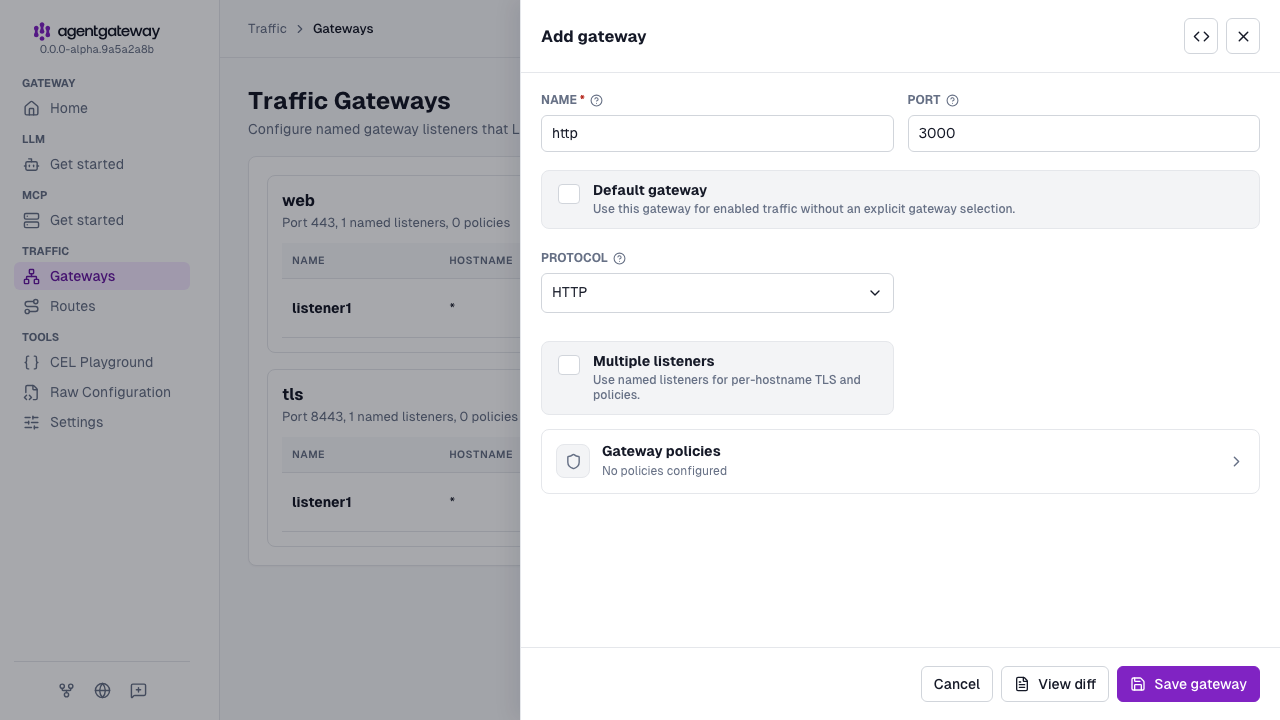
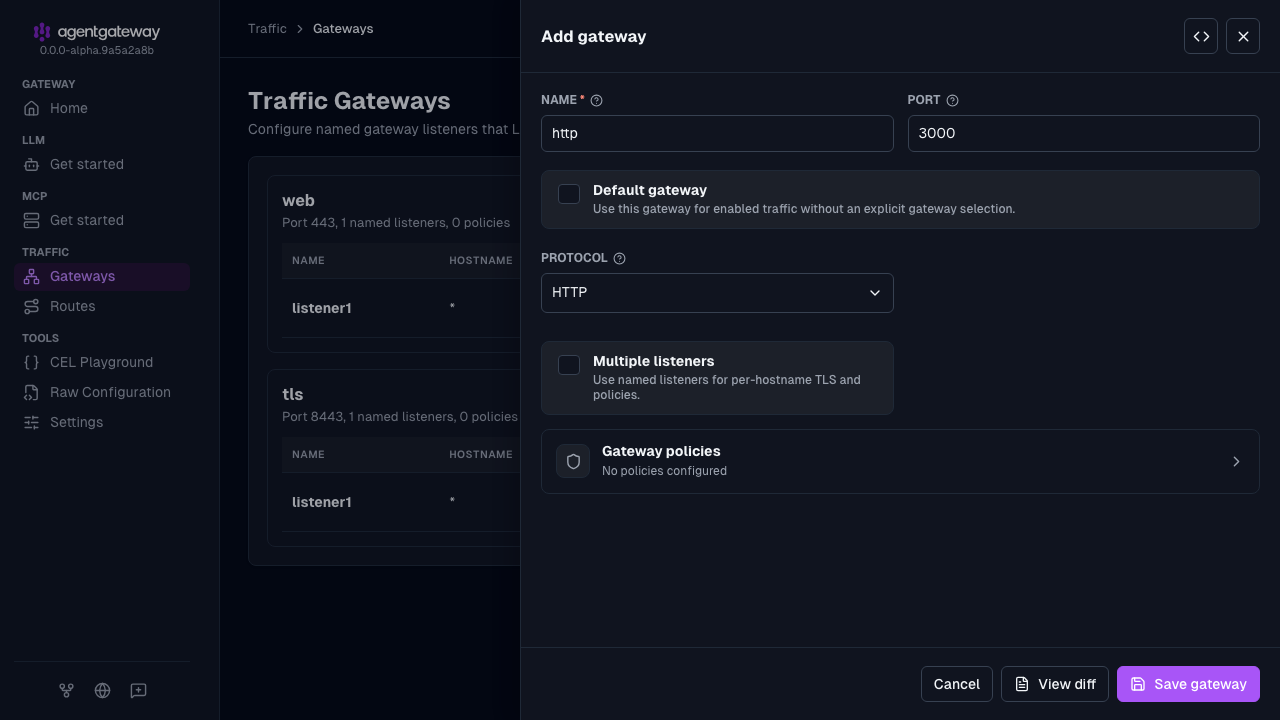
Click Save gateway.
Because HTTP is the default protocol, the UI leaves the protocol field out of the gateway entry.
Whether the UI can save depends on your storage mode. For more information, see Save changes from the UI.
HTTPS Listeners
Serving HTTPSHTTPS (HTTP Secure)HTTP over TLS/SSL, providing encrypted communication. Agentgateway supports HTTPS listeners with TLS certificate configuration. traffic requires TLS certificates and setting protocol: HTTPS on the gateway. When you set tls, the protocol defaults to HTTPS, so you can also omit the protocol field.
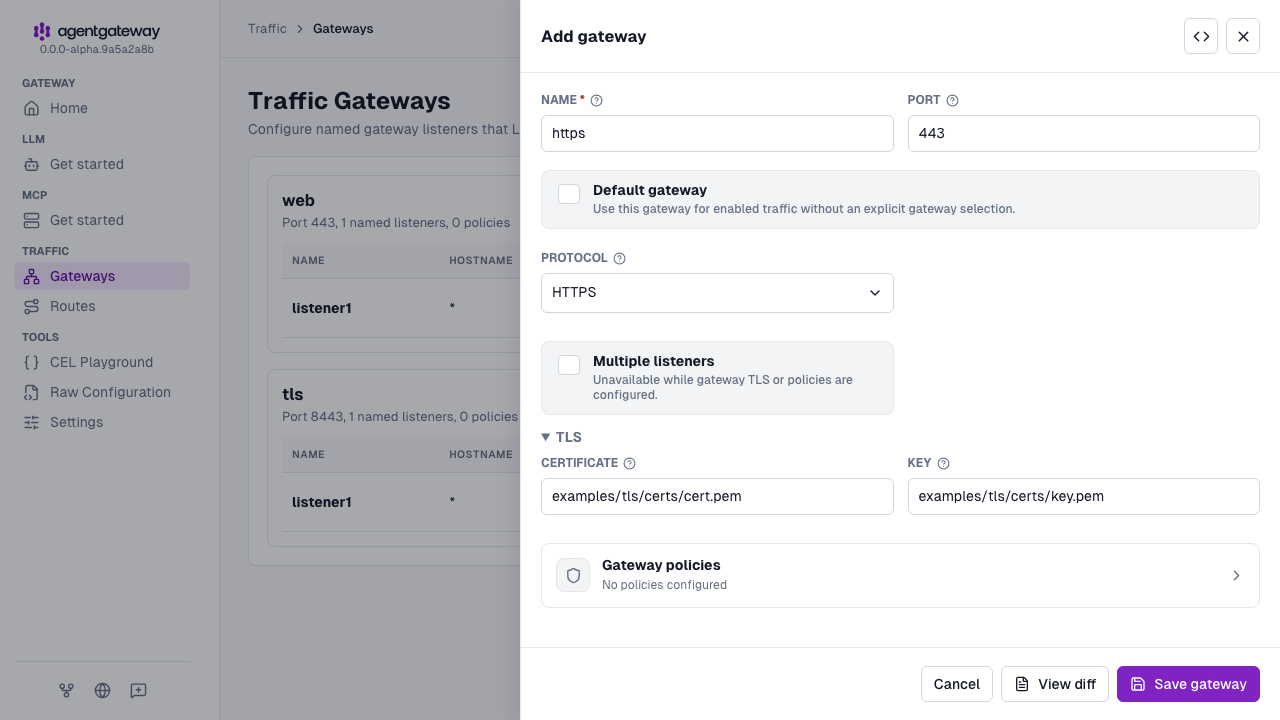
The following steps create the same https gateway as the Config file tab.
Open Traffic > Gateways, and click Add gateway.
Enter
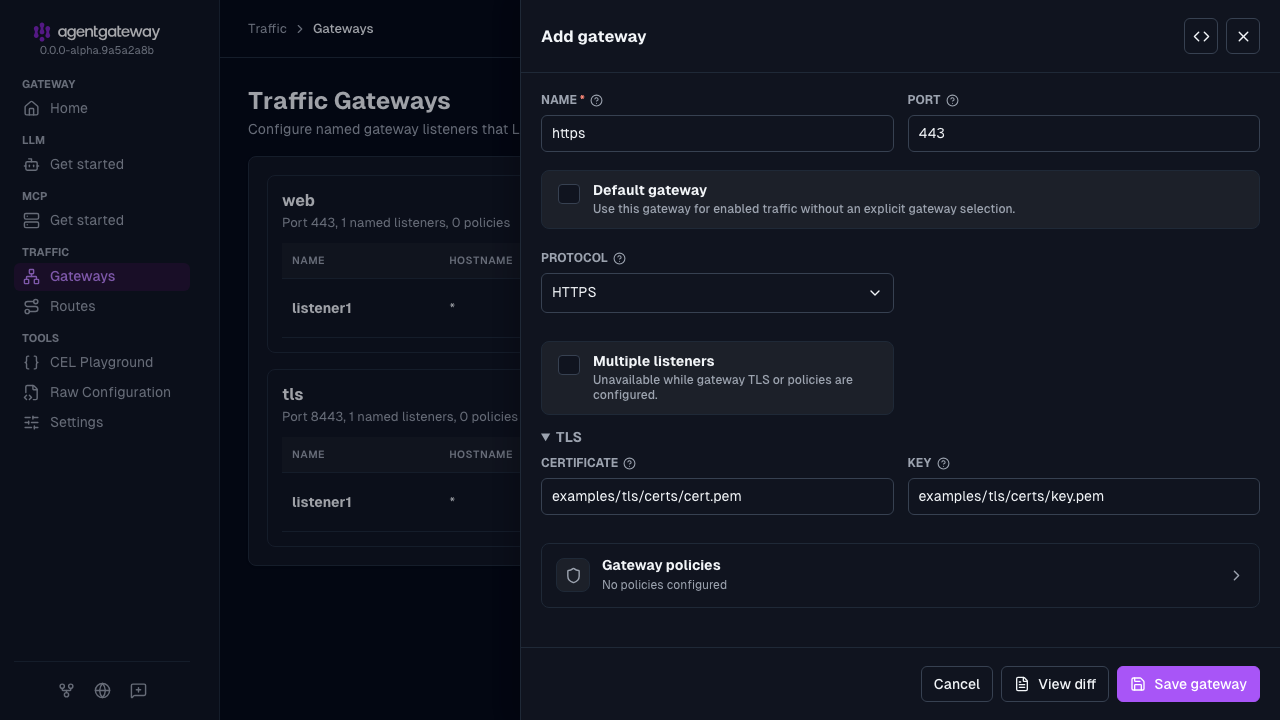
httpsfor the Name and443for the Port.Select HTTPS as the Protocol.
Expand the TLS section, and enter the paths to your files.
- Certificate:
examples/tls/certs/cert.pem - Key:
examples/tls/certs/key.pem
- Certificate:
Click Save gateway.
The certificate and key files must exist when you save. Relative paths resolve from the directory where agentgateway runs. The UI leaves out protocol: HTTPS, because setting tls implies it.
To generate a self-signed certificate for local testing, you can use openssl. Self-signed certificates trigger security warnings in browsers and clients, so use a certificate from a trusted certificate authority, such as Let’s Encrypt, in production.
openssl req -x509 -newkey rsa:4096 -keyout key.pem -out cert.pem -days 365 -nodes -subj "/CN=localhost"By default, a listener will match any traffic on the port.
To serve multiple hostnames on one port, add a named listener for each one under the gateway’s listeners field and set the hostname field. Traffic is then routed based on the hostname.
The most exact match will be used, as well as the corresponding TLS certificates.
Open Traffic > Gateways, and click Add gateway.
Enter a Name and a Port, such as
weband443.Select Multiple listeners, and click Save gateway. The gateway gets one listener named
listener1.Note
Select Multiple listeners before you change other fields. The option is unavailable after you select HTTPS or TLS, or add a policy to the gateway.
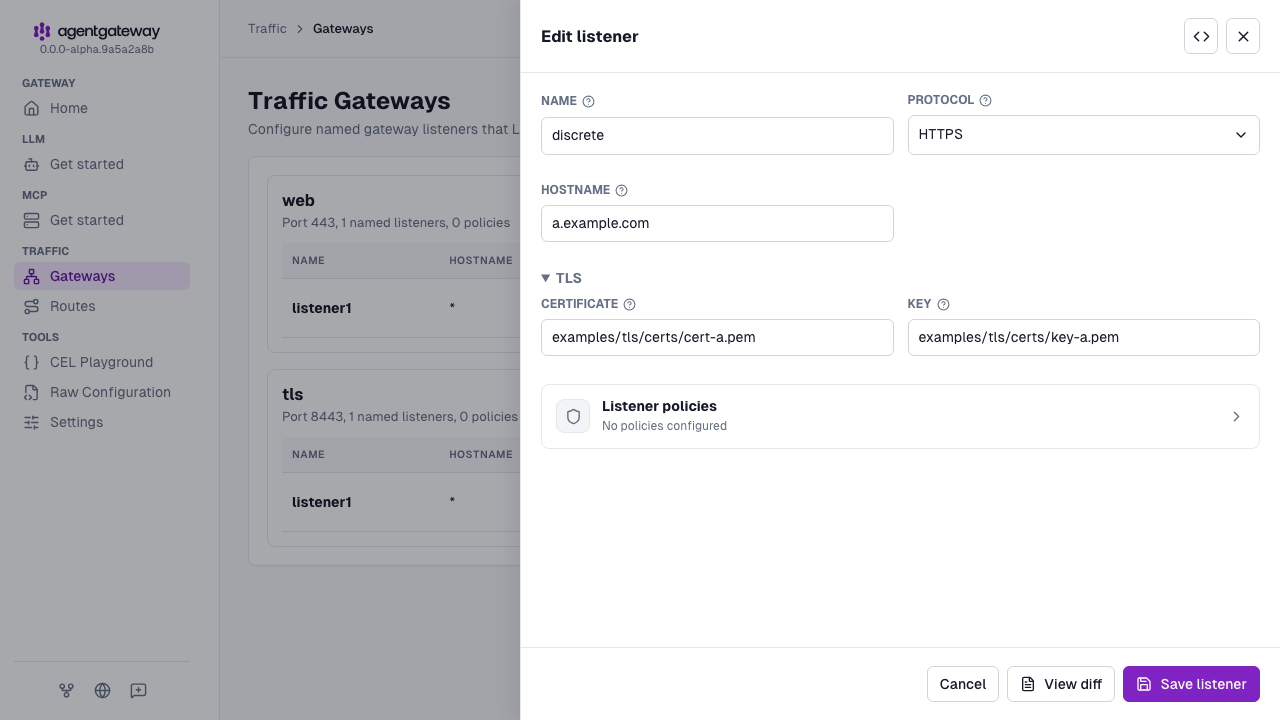
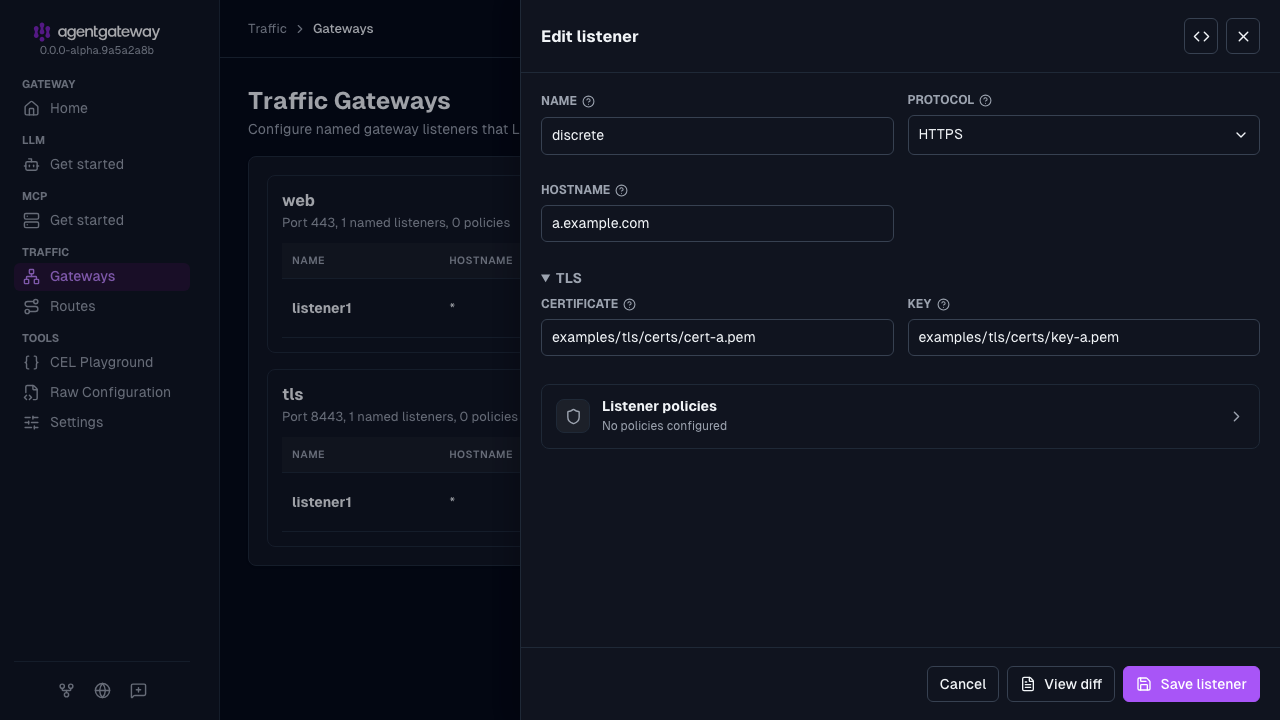
In the listener table of the
webgateway, click the Edit listener icon forlistener1, and fill out the Edit listener drawer.- Enter
discretefor the Name. - Select HTTPS as the Protocol.
- Enter
a.example.comfor the Hostname. - Expand the TLS section. Enter
examples/tls/certs/cert-a.pemfor the Certificate andexamples/tls/certs/key-a.pemfor the Key.
- Enter
Click Save listener.
In the header of the
webgateway, click the Add listener icon. In the Add listener drawer, create thewildcardlistener in the same way as thediscretelistener.- Enter
wildcardfor the Name. - Select HTTPS as the Protocol.
- Enter
*.example.comfor the Hostname. - Expand the TLS section. Enter
examples/tls/certs/cert-wildcard.pemfor the Certificate andexamples/tls/certs/key-wildcard.pemfor the Key. - Click Save listener.
- Enter
The UI leaves out protocol: HTTPS on each listener, because setting tls implies it.
To attach a route to one of these listeners instead of the whole gateway, reference it as web/discrete or web/wildcard in the route’s gateways field.
Redirect HTTP to HTTPS
Listeners under one gateway share a port, so they cannot mix encrypted and plaintext traffic. To serve both HTTP and HTTPS, define a separate gateway for each, and attach a route with a requestRedirect policy to the HTTP gateway. The following example listens for plaintext HTTP on port 80 and redirects it to HTTPS, while serving encrypted traffic on port 443.
gateways:
  http:
    port: 80
    protocol: HTTP
  https:
    port: 443
    protocol: HTTPS
    tls:
      cert: ./certs/cert.pem
      key: ./certs/key.pem
routes:
- name: redirect
  gateways: [http]  # Redirects plaintext traffic to the https gateway
  policies:
    requestRedirect:
      scheme: https
TCP Listeners
TCP listeners can be configured by setting protocol: TCP on the gateway.
TCP listeners are useful when serving traffic that is not HTTP based.
Note
A large portion of agentgateway’s functionality is specific to HTTP traffic, and not available for TCP traffic.
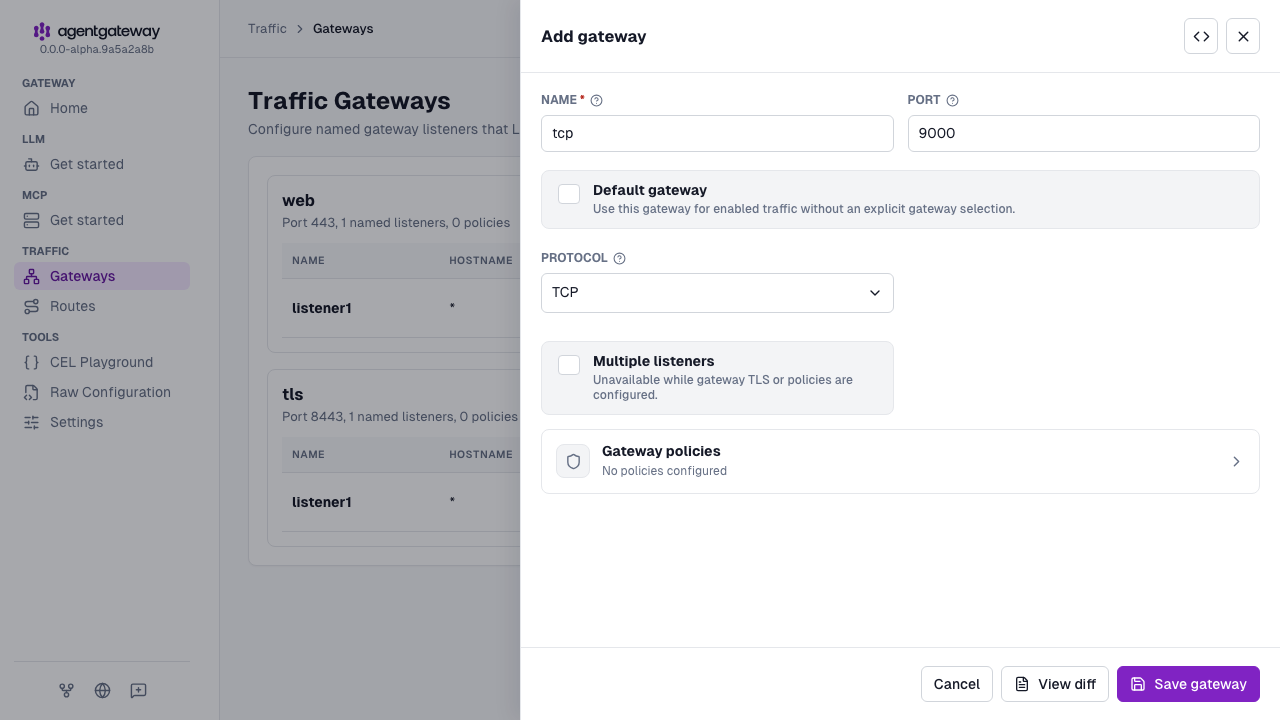
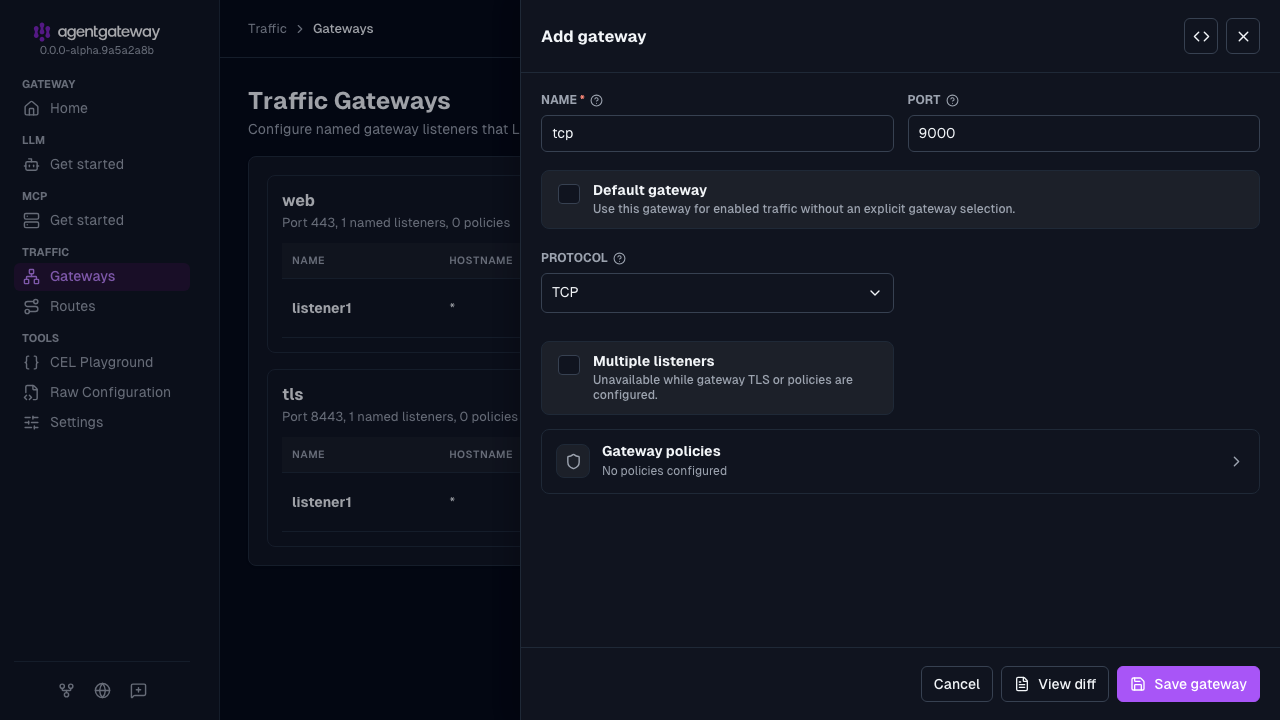
Open Traffic > Gateways, and click Add gateway.
Enter a Name and a Port, such as
tcpand9000.Select TCP as the Protocol.
Click Save gateway.
Additionally, note the use of tcpRoutes instead of routes (which are HTTP routes) in the example.
TLS Listeners
For serving TLS traffic, the protocol: TLS can be used.
Note
TLS encrypted HTTP traffic should use HTTPS listeners.
TLS listeners can either terminate or passthrough TLS traffic. While both a TCP and TLS passthrough listener do not terminate TLS, the latter enables the use of routing based on the hostname (utilizing SNI).
A TLS listener without a certificate passes TLS through. A TLS listener with a certificate and key terminates TLS.
Open Traffic > Gateways, and click Add gateway.
Enter a Name and a Port, such as
tlsand8443.Select Multiple listeners, and click Save gateway. The gateway gets one listener named
listener1.In the listener table of the
tlsgateway, click the Edit listener icon forlistener1, and add the passthrough listener.- Enter
passthroughfor the Name. - Select TLS as the Protocol.
- Enter
passthrough.example.comfor the Hostname. - Leave the TLS section empty.
- Enter
Click Save listener.
In the header of the
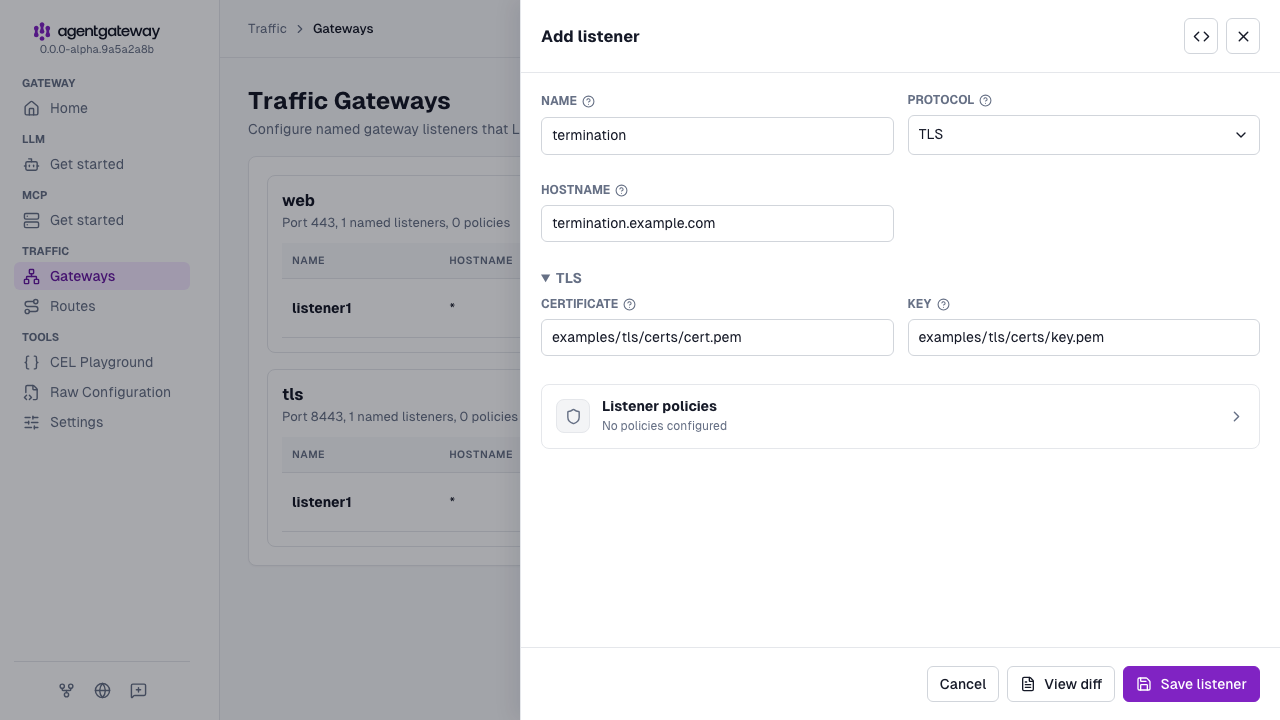
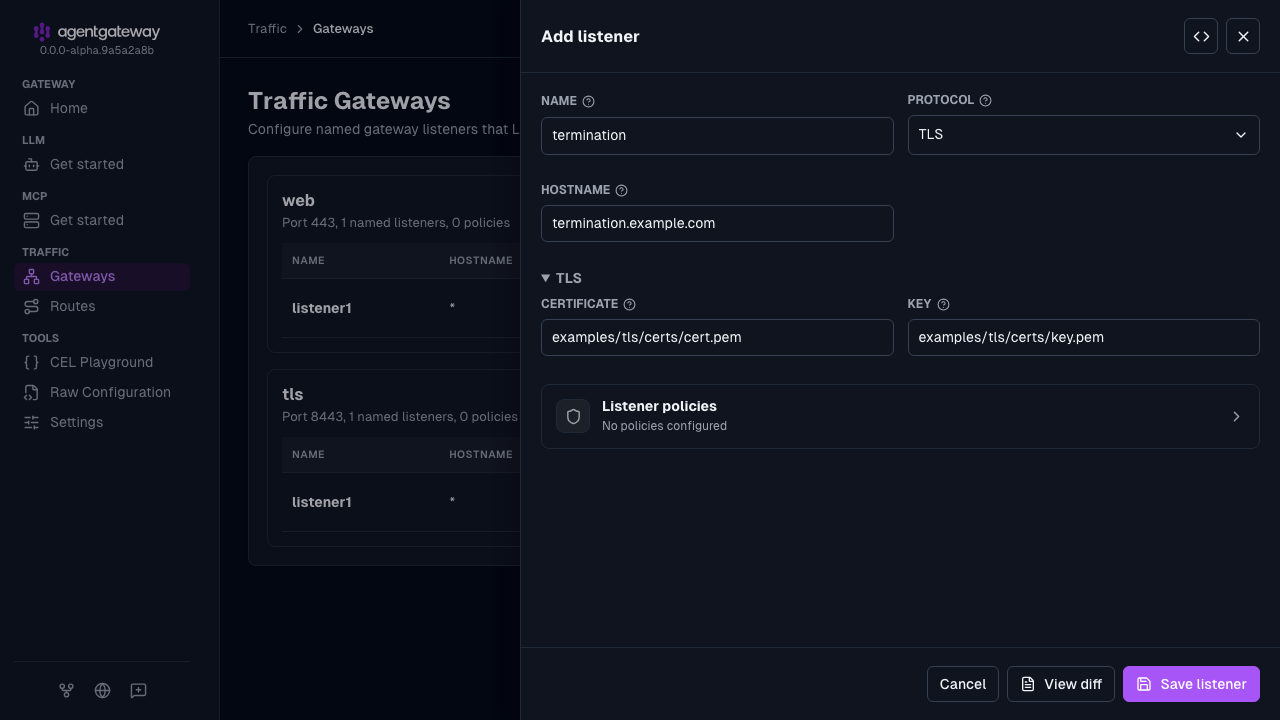
tlsgateway, click the Add listener icon, and add the termination listener.- Enter
terminationfor the Name. - Select TLS as the Protocol.
- Enter
termination.example.comfor the Hostname. - Expand the TLS section. Enter
examples/tls/certs/cert.pemfor the Certificate andexamples/tls/certs/key.pemfor the Key.
- Enter
Click Save listener.